In this article8 sections
Comments can build a community, but they also bring spam, moderation work and sometimes abuse. Many business sites, portfolios and documentation sites do not need them at all.
WordPress lets you turn comments off in several ways, depending on whether you want to stop them on new posts, existing posts, or everywhere.
Method 1: Stop comments on new posts
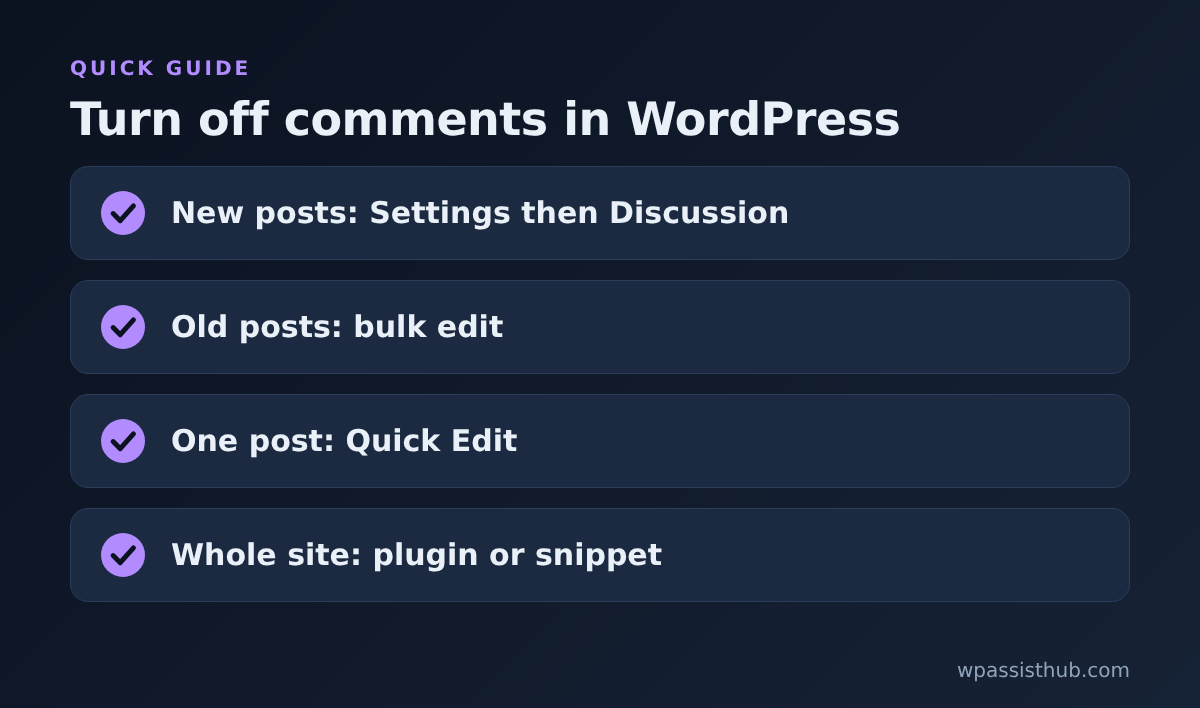
- Go to Settings → Discussion.
- Uncheck Allow people to submit comments on new posts.
- Also uncheck Allow link notifications from other blogs (pingbacks and trackbacks) on new posts if you do not want those.
- Click Save Changes.
This only affects posts you publish after the change. Old posts keep whatever comment setting they had.
Method 2: Turn off comments on existing posts
For many posts at once:
- Go to Posts → All Posts.
- Use the screen options at the top to show more posts per page if needed.
- Tick the checkbox at the top to select all posts on the page.
- Choose Edit from the Bulk actions menu and click Apply.
- Set Comments to Do not allow and click Update.
Repeat for Pages and any other post types. For a single post, use Quick Edit on the posts list, or open the editor and untick Allow comments under Discussion in the sidebar.
Method 3: Turn off comments sitewide
If you want comments gone everywhere, including on future content and custom post types, you can use a plugin or code.
With a plugin. The free plugin Disabled Source, Disabled Right Click and Content Protection includes a Disable Comments option. You can find it under Disabled Settings after you install and activate the plugin.
With code. This snippet closes comments and pings and hides existing comments on the front end. Add it to your child theme or a code snippets plugin:
add_filter( 'comments_open', '__return_false', 20, 2 );
add_filter( 'pings_open', '__return_false', 20, 2 );
add_filter( 'comments_array', '__return_empty_array', 10, 2 );
It does not delete existing comments, so you can turn them back on later. You may also want to hide the Comments menu in the admin area for a cleaner dashboard.
What happens to old comments?
Turning comments off does not remove them from your database. They may stay visible depending on the method you use. If you want to remove them, go to Comments, select the ones you want to delete, and move them to the trash. Take a backup first, because this cannot be undone once you empty the trash.
Should you disable comments?
Reasons to turn them off
- You get a lot of spam.
- You do not have time to moderate.
- Your content is not conversational, for example, a company site.
- You want visitors to contact you through a form instead.
Reasons to keep them
- Comments can add useful discussion and fresh text to a page.
- They help you learn what readers want.
- They build trust on tutorial and review sites.
A middle option is to keep comments on, but require approval, use a spam filter, and close comments on posts after 30 or 60 days under Settings → Discussion.
Does it affect SEO?
Removing comments does not hurt your rankings by itself. If your comments were adding unique, helpful text, you lose that content, but spam comments with links can harm a site, so removing them can help. The plugin’s FAQ confirms there are no Google ranking disadvantages from its protection settings.
Frequently asked questions
Does disabling comments delete the existing ones?
No. Turning comments off stops new ones, and your existing comments stay in the database unless you delete them.
Can I turn off comments on only some posts?
Yes. Use Quick Edit on the posts list, or untick Allow comments in the Discussion panel of the editor.
Will this stop all spam?
It stops comment spam. Contact forms and registration forms still need their own spam protection.
Summary
Use Settings → Discussion for new posts, bulk edit for existing ones, and a plugin or snippet for a full shutdown. Check a few pages in a private window afterwards to confirm the comment form is gone. If you are tightening your site more broadly, our security checklist is a good next read.
Disclosure: I develop the plugin mentioned in this guide.

We build lightweight WordPress plugins and write practical, tested guides for site owners and developers. Our team is led by a WordPress Core Contributor with 6+ years of WordPress experience.
About us →