In this article8 sections
Big updates, redesigns, and migrations can leave your site half-finished for a while. Maintenance mode shows visitors a friendly “we will be back soon” page while you work, instead of a broken layout or an error.
Done well, it protects your visitors experience and your search rankings. Done badly, it can leave you with pages dropped from Google.
What is WordPress maintenance mode?
WordPress already has a very basic version. When you update plugins, themes, or core, WordPress creates a temporary file called .maintenance in your site’s root folder and shows the message “Briefly unavailable for scheduled maintenance. Check back in a minute.” The file is deleted when the update is done.
If an update fails midway, that file can stay behind, and your site shows the message forever. To fix it, delete the .maintenance file in your site’s root folder through FTP or your host’s file manager.
For planned work, you want something with a better message and more control.
The SEO side: why the 503 status matters
When a visitor or search engine loads a page, the server replies with a status code. For temporary downtime, the right one is 503 Service Unavailable, ideally with a Retry-After header. It tells Google, “This is temporary, come back later, do not remove this page.”
If your maintenance page returns 200 OK instead, Google may index the maintenance message as if it were your real content. If it stays that way for days, your pages can drop in rankings.
You can check what your page returns:
- In Chrome, press F12, open the Network tab, reload, and look at the status of the first request.
- Or run
curl -I https://yoursite.comfrom a terminal and read the first line.
How to enable maintenance mode with a plugin
The free plugin Disabled Source, Disabled Right Click and Content Protection includes Website Maintenance and Website Maintenance Custom Design options.
- Install and activate the plugin.
- Go to Disabled Settings in the admin menu.
- Find Website Maintenance and switch it on.
- Use Website Maintenance Custom Design to change the look of the page, with your logo, colours, and message.
- Save, then open your site in a private window to see what visitors see.
- Check the status code using the method above.
Test whether you can still log in and view your site as an administrator, so you can keep working while visitors see the maintenance page. Behaviour for logged-in users can differ between tools, so check it instead of assuming.
Writing a good maintenance page
- Say what is happening in one sentence.
- Give a time estimate, such as “back by 3 pm GMT,” if you can.
- Add a contact email or social link for urgent questions.
- Keep the branding consistent with your site.
- Avoid heavy images and scripts so the page loads fast.
Common mistakes
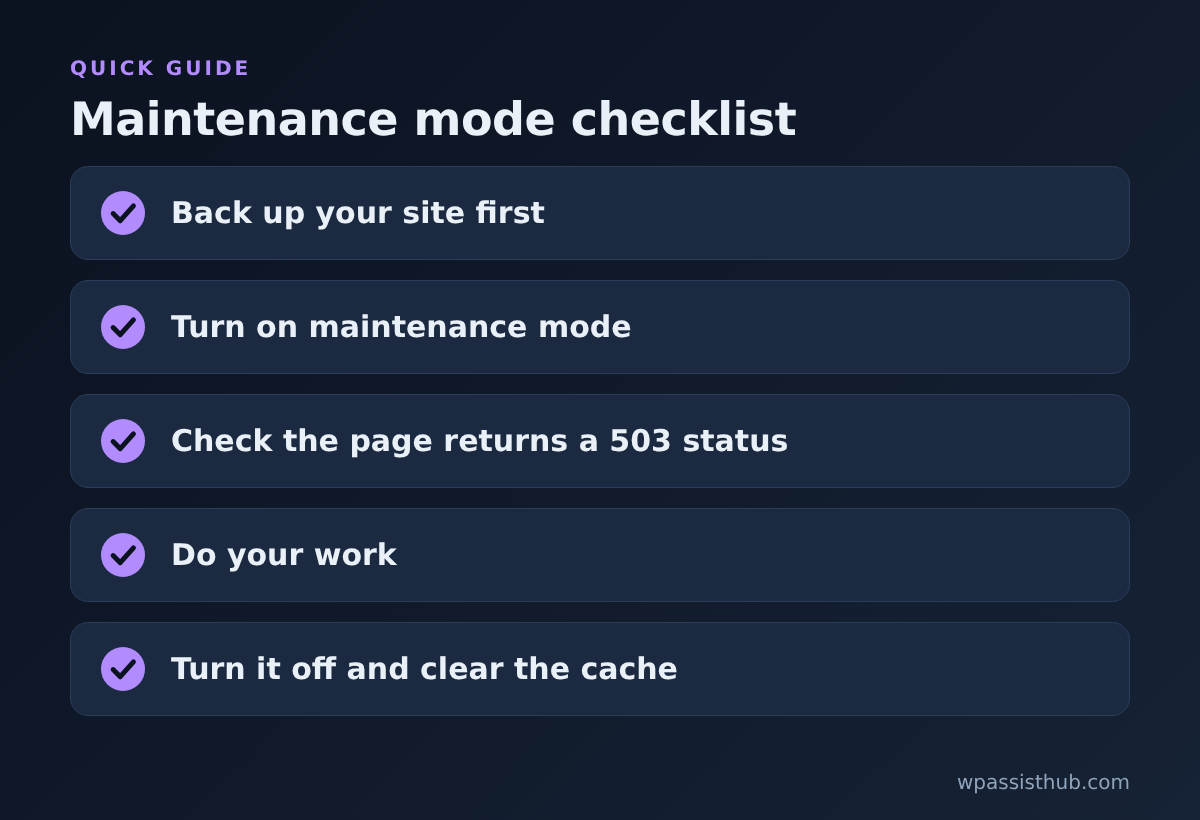
- Leaving it on. Set a reminder and turn it off as soon as you finish.
- No backup. Take a full backup before big changes, whether or not you use maintenance mode.
- Caching. After switching it on or off, clear your caching plugin and CDN, or visitors may see the wrong version.
- Blocking your own access. Keep a second browser window logged in while you test.
- Using it for weeks. For long projects, build on a staging copy of your site and move changes live in one short window.
Maintenance mode vs coming soon
A coming soon page is for a site that has not launched yet. Maintenance mode is for a site that is already live and is temporarily unavailable. The SEO considerations are similar, and both should return a 503 status while the real content is missing.
Frequently asked questions
How long can I keep my site in maintenance mode?
Keep it to hours, not days. If a 503 page stays up for several days, search engines may begin to drop your pages.
Will I see the maintenance page while logged in?
It depends on the tool. Some let logged-in administrators see the real site, and some do not, so test it in a private window and a normal one.
Should I back up before turning it on?
Yes. Take a full backup of your files and database before any big change, with or without maintenance mode.
Summary
Use maintenance mode for planned work, confirm that it returns a 503 status, write a short helpful message, and switch it off the moment you finish. Pair it with a good backup routine, as described in our WordPress security checklist.
Disclosure: I develop the plugin mentioned in this guide.

We build lightweight WordPress plugins and write practical, tested guides for site owners and developers. Our team is led by a WordPress Core Contributor with 6+ years of WordPress experience.
About us →