In this article12 sections
- What causes this error
- Before you start
- Step 1: Check your wp-config.php credentials
- Step 2: Test the connection with a small script
- Step 3: Check whether the database server is running
- Step 4: Repair the database
- Step 5: Check for a problem in the admin area
- Step 6: Check hosting limits and plugins
- Step 7: Restore from a backup
- How to prevent it
- Frequently asked questions
- Summary
You open your site and see only one line: “Error establishing a database connection.” No theme, no menu, nothing else. It looks scary, but it usually has a simple cause. WordPress cannot talk to its database, so it cannot load any content.
This guide lists the causes from most to least common, so you can fix the error quickly.
What causes this error
- Wrong database name, username, password or host in
wp-config.php. - The database server (MySQL or MariaDB) is down or overloaded.
- A corrupted database or damaged tables.
- Hosting changes, such as a migration or a password reset.
- Too many connections on a busy shared server.
Before you start
Take a backup of your files and database if you can reach them through your hosting panel. Then work through these steps in order.
Step 1: Check your wp-config.php credentials
Open wp-config.php in your site’s root folder using the File Manager or FTP. Look for these lines:
define( 'DB_NAME', 'your_database_name' );
define( 'DB_USER', 'your_database_user' );
define( 'DB_PASSWORD', 'your_database_password' );
define( 'DB_HOST', 'localhost' );
Compare each value with what your hosting panel shows under MySQL Databases. A single wrong character is enough to break the connection. This is the most common cause, especially after moving a site or changing a password.
The host is usually localhost, but some hosts use a different server name. Check your host’s documentation if you are not sure.
Step 2: Test the connection with a small script
If the values look right, test them directly. Create a file named db-test.php in your site’s root folder:
<?php
$link = mysqli_connect( 'localhost', 'DB_USER', 'DB_PASSWORD', 'DB_NAME' );
if ( ! $link ) {
    die( 'Connection failed: ' . mysqli_connect_error() );
}
echo 'Connected successfully.';
Replace the four values, open yoursite.com/db-test.php, and read the message. Delete the file straight afterwards, because it contains your password. The message tells you whether the problem is the password, the host or the server.
Step 3: Check whether the database server is running
If the test says the connection was refused, the server may be down. Check your host’s status page, or try opening phpMyAdmin from your control panel. If other sites on the same server also fail, contact your hosting support. They can restart the service or check for resource limits.
Step 4: Repair the database
Add this line to wp-config.php, above the “That’s all, stop editing” comment:
define( 'WP_ALLOW_REPAIR', true );
Then visit yoursite.com/wp-admin/maint/repair.php and choose Repair Database. This page does not need a login, so remove the line from wp-config.php as soon as you finish.
You can also repair tables in phpMyAdmin: select all tables, then choose Repair table from the dropdown.
Step 5: Check for a problem in the admin area
If your front end shows the error and the dashboard shows a different message such as “One or more database tables are unavailable”, the database is damaged. Use the repair tool above, or restore from your latest backup.
Step 6: Check hosting limits and plugins
- Ask your host whether you hit a connection limit or ran out of disk space.
- If the error appears only from time to time, a heavy plugin or a traffic spike may be using up connections.
- Rename the
wp-content/pluginsfolder toplugins-offfor a quick test. If the site loads, a plugin is at fault. Rename it back and deactivate plugins one at a time.
Step 7: Restore from a backup
If nothing works, restore the database from a backup. Most hosts keep daily backups. Restoring replaces the current data, so you will lose changes made since that backup. This is why regular backups matter, as covered in our WordPress security checklist.
How to prevent it
- Keep automatic backups stored away from your server.
- Use a good host with enough resources for your traffic.
- Avoid editing
wp-config.phpwithout a copy of the original. - Update plugins and clean up unused ones.
- Use maintenance mode when you plan risky changes.
Frequently asked questions
Is my data lost when I see this error?
Almost always no. The data is still in the database. WordPress just cannot reach it right now.
Why did the error appear suddenly with no changes?
The database server may have stopped, a password may have been reset by your host, or your account may have hit a resource limit. Contact your host if the credentials are correct.
Can a plugin cause this error?
Rarely directly. A plugin can overload the database or damage a table, which then causes the error.
Will the repair tool delete anything?
No, it fixes damaged tables. Still, take a backup first as a habit.
Summary
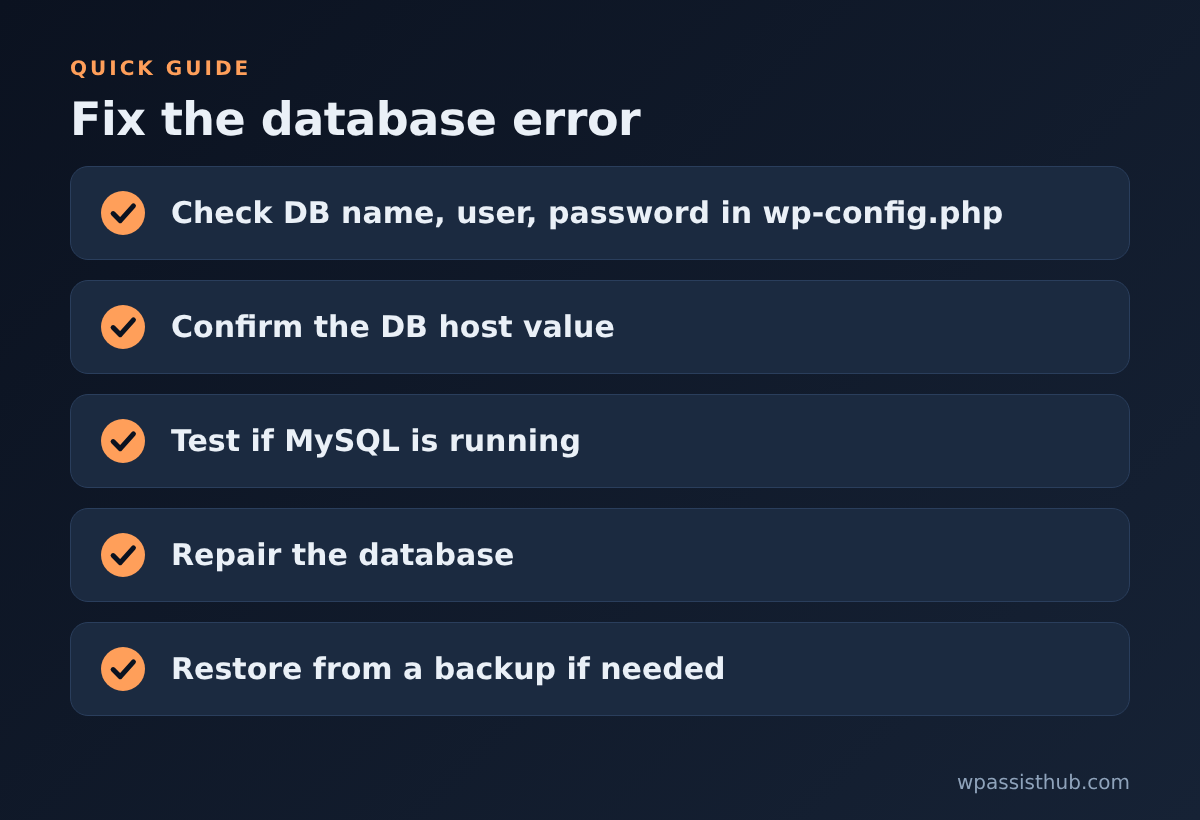
Check the four values in wp-config.php, test the connection, confirm the database server is running, repair the tables, then restore a backup if needed. If the site works again, review your backups and hosting limits. If you hit a blank page instead, read our guide to the WordPress white screen of death.

We build lightweight WordPress plugins and write practical, tested guides for site owners and developers. Our team is led by a WordPress Core Contributor with 6+ years of WordPress experience.
About us →