In this article12 sections
- Common causes
- Step 1: Check the dashboard and your email
- Step 2: Turn on debug mode
- Step 3: Disable all plugins
- Step 4: Switch to a default theme
- Step 5: Raise the PHP memory limit
- Step 6: Check the PHP version
- Step 7: Replace core files
- Step 8: Check the .htaccess file
- Prevent the problem next time
- Frequently asked questions
- Summary
You load your site and see a completely blank page. No error, no message, nothing. This is the WordPress white screen of death (WSOD). It happens when PHP crashes before WordPress can show anything, and by default, errors are hidden from visitors.
The good news is that the cause is nearly always a plugin, a theme, or a memory limit, and you can find it with a clear method.
Common causes
- A plugin or theme with a PHP error, often after an update.
- A conflict between two plugins.
- The PHP memory limit is too low.
- A PHP version that your code does not support.
- A syntax mistake after editing
functions.php. - Corrupted core files after a failed update.
Step 1: Check the dashboard and your email
Sometimes only the front end is blank. Try yoursite.com/wp-admin. Since WordPress 5.2, a fatal error often triggers a recovery mode email sent to the admin address. It contains a special link to log in and pause the broken plugin or theme. Check your inbox and spam folder.
Step 2: Turn on debug mode
Edit wp-config.php and set:
define( 'WP_DEBUG', true );
define( 'WP_DEBUG_LOG', true );
define( 'WP_DEBUG_DISPLAY', false );
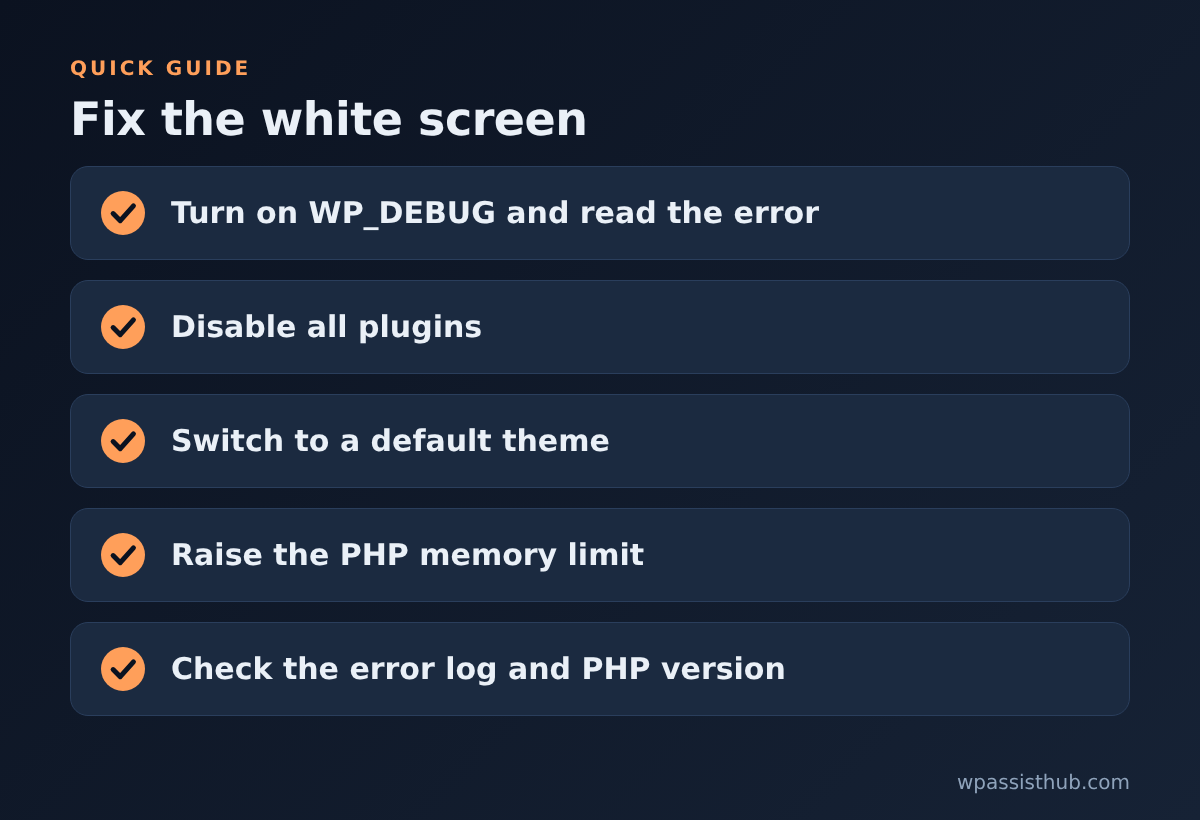
Reload the page. Then open wp-content/debug.log. The last lines usually name the exact file and line that failed, for example, a path inside wp-content/plugins/some-plugin/. That tells you who to blame. Turn debug mode off when you finish, and delete the log, since it can contain sensitive paths.
Step 3: Disable all plugins
If you cannot reach the dashboard, use FTP or the File Manager:
- Go to
wp-content. - Rename the
pluginsfolder toplugins-off. - Reload the site.
If it works, rename the folder back to plugins. All plugins will be inactive. Reactivate them one by one in the dashboard until the problem returns. The last one you turned on is the cause.
Step 4: Switch to a default theme
If plugins are not the cause, the theme may be. In wp-content/themes, rename the active theme’s folder. WordPress falls back to a default theme such as Twenty Twenty-Five, if one is installed. If your site returns, fix or replace the theme.
If you recently edited functions.php, undo the last change. A missing semicolon or bracket is enough to break everything.
Step 5: Raise the PHP memory limit
If the log says “Allowed memory size exhausted”, add this to wp-config.php:
define( 'WP_MEMORY_LIMIT', '256M' );
Some hosts limit memory themselves and ignore this setting. In that case, change it in your hosting panel (look for a PHP settings page) or ask support.
Step 6: Check the PHP version
A new plugin may need a newer PHP version, and an old plugin may break on a new one. In your hosting panel, check the PHP version and try switching one step up or down. Always read the error log first to see which direction makes sense.
Step 7: Replace core files
If the error points at a file inside wp-admin or wp-includesthe core files may be damaged. Download a fresh copy of the same WordPress version, then upload the new wp-admin and wp-includes folders over the old ones. Do not overwrite wp-content or wp-config.php.
Step 8: Check the .htaccess file
Rename .htaccess to .htaccess-old and reload. If the site returns, go to Settings → Permalinks and click Save, which creates a clean file.
Prevent the problem next time
- Take a backup before updating anything.
- Test updates on a copy of your site. See our guide to setting up a WordPress staging site.
- Update plugins one at a time, not all at once.
- Delete plugins and themes you do not use.
- Keep your site secure with our WordPress security checklist.
Frequently asked questions
Is the white screen the same as the 500 error?
They are related. A 500 error shows a server error page, while the white screen shows nothing at all. Both usually come from the same kinds of PHP problems.
Why is only part of my site white?
If only the dashboard or one page is blank, the cause is usually a plugin or theme function used only there.
Will I lose my content?
No. The content lives in the database and is not affected by a PHP crash.
Can a hacker cause a white screen?
Yes, malware sometimes breaks a site. If the log shows strange files or code you did not add, scan the site and restore a clean backup.
Summary
Turn on debug logging, read the error, then work through plugins, theme, memory, and PHP version. Nine times out of ten, the debug log names the culprit. If you instead see a database message, read how to fix the database connection error.

We build lightweight WordPress plugins and write practical, tested guides for site owners and developers. Our team is led by a WordPress Core Contributor with 6+ years of WordPress experience.
About us →