In this article11 sections
Changing hosting companies is stressful for most site owners. You worry about lost data, broken pages, and downtime. With a careful plan, you can migrate WordPress to a new host safely, and visitors will never notice.
There are two ways: use a migration plugin or move everything by hand. This guide covers both so you can choose.
Before you begin
- Keep your old hosting active until the move is finished and tested.
- Choose a quiet time of day for the final switch.
- Do not change content on the old site during the move, or put it in maintenance mode for the final copy.
- Make sure your new host supports the PHP version your site needs.
Step 1: Take a full backup
Back up both files and database, and store a copy on your own computer. This is your safety net. If anything goes wrong, you can restore it.
Option A: Use a migration plugin
Plugins such as All-in-One WP Migration or Duplicator package your whole site into a file.
- Install the plugin on the old site.
- Export or build the package (files plus database).
- Install a fresh WordPress on the new host and add the same plugin.
- Import the package.
- Save your permalinks again and check the site.
This works well for small and medium sites. Large sites may hit upload size limits, which you can raise in the host’s PHP settings or by uploading the file through FTP when the plugin allows it.
Option B: Migrate manually
Copy the files
Download the whole site folder (usually public_html) with FTP or the host’s File Manager, or compress it into a zip and download that. Upload it to the new host’s web folder.
Export and import the database
- In phpMyAdmin on the old host, select your database and use Export (the Quick method in SQL format is fine).
- On the new host, create an empty database and a user with full rights to it.
- In the new phpMyAdmin, select the new database and import the SQL file. For very large databases, ask your host for help or use the command line.
Edit wp-config.php
Update the database details to match the new database:
define( 'DB_NAME', 'new_database_name' );
define( 'DB_USER', 'new_database_user' );
define( 'DB_PASSWORD', 'new_database_password' );
define( 'DB_HOST', 'localhost' );
If you made a typo here, you will see the database connection error, so check each value.
Step 2: Test before switching DNS
You can view the new site while the public still sees the old one by editing your computer’s hosts file. Add a line pointing your domain to the new server’s IP address (your new host will give you this). Then open your domain in the browser, which now loads the new copy.
Check these things:
- The home page, posts, menus, and images.
- The login page and the dashboard.
- Forms, search, and checkout (if you sell products).
- Permalinks (save them again if you see 404 errors).
- Any plugin that depends on the server, such as caching.
Remember to remove the hosts file line when you finish testing.
Step 3: Lower the DNS TTL
A day before the switch, lower the TTL (time to live) of your domain’s DNS records to a short value like 300 seconds. This makes the change spread faster when you update the records.
Step 4: Switch DNS
Change the A record (or nameservers) to point to the new host. For a short time, some visitors see the old site and others the new one, which is normal. Because both copies are identical and the old site is frozen, nobody notices. Propagation often completes within hours, but it can take up to 48 hours.
Step 5: After the move
- Install or check the SSL certificate on the new host.
- Make sure email still works if it was tied to the old host.
- Re-run a backup on the new server and check that scheduled backups work.
- Test your site speed, and review the WordPress security checklist on the new server.
- Watch Search Console for crawl errors.
- Keep the old hosting for a week or two, then cancel it.
Common problems
- Mixed content or broken images. Usually a URL problem. Search and replace the old URLs in the database with a safe tool that handles serialized data.
- 404 on posts. Save Settings → Permalinks.
- Redirect loops. Check
.htaccessand any SSL plugin settings. - White page. Turn on debug mode, as explained in our white screen of death guide.
Frequently asked questions
Will my SEO rankings drop if I change hosts?
Not if the URLs stay the same and the site stays online. A faster host can even help.
Can my new host move the site for me?
Many hosts offer free migrations. It is worth asking, since they know their own setup.
How long does the whole process take?
A small site can move in an hour. DNS propagation then adds a few hours.
Do I need to change my domain name?
No. You keep your domain and only point it to the new server.
Summary
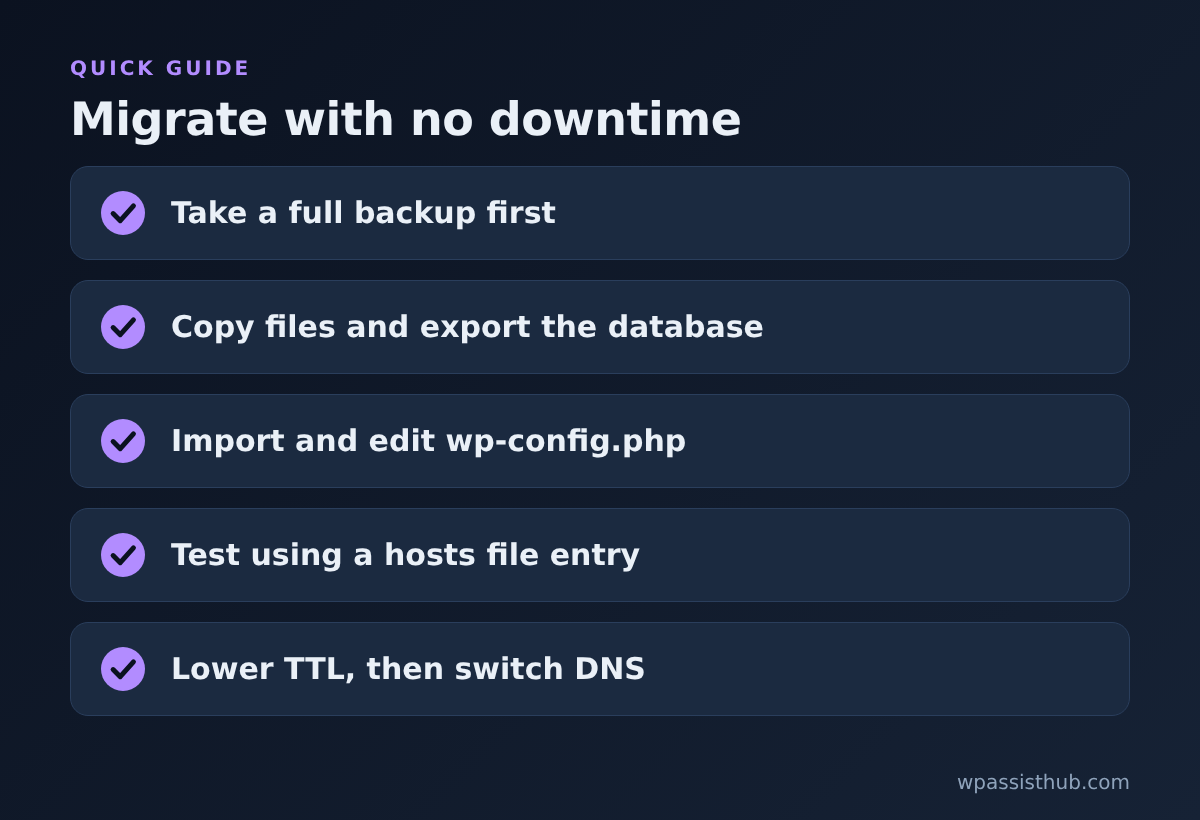
Back up, copy files and database, update wp-config.phpTest with a hosts-file entry, then switch DNS. Keep the old host for a while as a fallback. If you are changing the domain or want to test changes first, a staging site is the safest place to practice.

We build lightweight WordPress plugins and write practical, tested guides for site owners and developers. Our team is led by a WordPress Core Contributor with 6+ years of WordPress experience.
About us →