In this article8 sections
Open any website, press Ctrl+U, and you can read its HTML. Press F12 and you can inspect and copy almost anything on the page. For site owners who want to discourage casual copying, blocking these shortcuts is a common first step.
This post explains how to disable View Source and Inspect Element shortcuts in WordPress, and, just as important, what this can and cannot do.
Why you cannot truly hide your page source
Before changing any settings, you should understand one fact: a browser has to download your HTML, CSS, and JavaScript to display your page. Anything the browser can show, a visitor can technically read. That means no WordPress setting can make source code invisible.
What you can do is make it inconvenient. Blocking the keyboard shortcuts and the right-click menu stops most casual visitors, such as people who just want to grab a line of text or an image URL. People who know what they are doing can still type view-source: before your address, use the browser’s main menu, or download the page with a command-line tool.
Which shortcuts can be blocked?
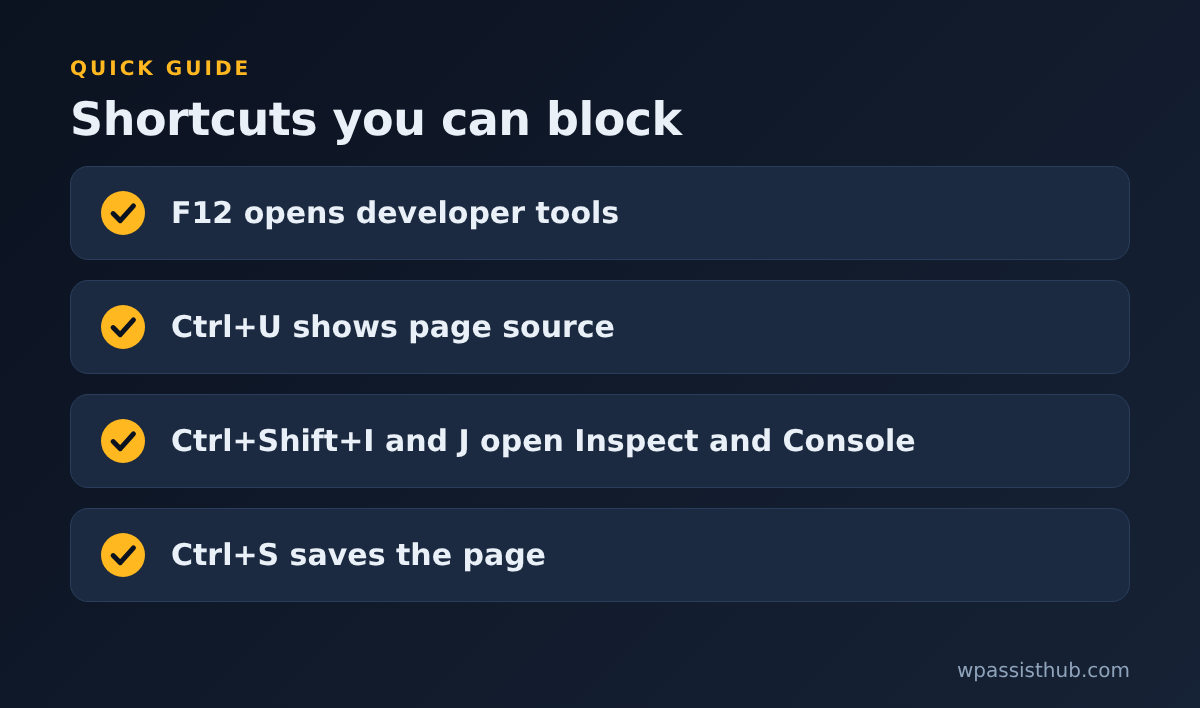
These are the ones people use most:
- F12 opens developer tools in most browsers.
- Ctrl+U opens the page source.
- Ctrl+Shift+I opens Inspect.
- Ctrl+Shift+J opens the JavaScript console.
- Ctrl+Shift+C starts element selection.
- Ctrl+S saves the page.
- Ctrl+C copies selected text.
On a Mac, the same shortcuts use the Command or Option keys, so a good blocker covers both.
Step by step with a plugin
The free plugin Disabled Source, Disabled Right Click and Content Protection lets you switch these off one by one. Its settings include Disable F12, Disable Ctrl+U, Disable Ctrl+Shift+U, Disable Ctrl+I, Disable Ctrl+Shift+I, Disable Ctrl+J, Disable Ctrl+Shift+J, Disable Ctrl+C and Disable Ctrl+Shift+C, plus a master Disable Developer Tools option.
- Install and activate the plugin from Plugins → Add New.
- Go to Disabled Settings in the admin menu.
- Turn on the shortcuts you want to block. If you are unsure, start with Disable Developer Tools, Disable F12, and Disable Ctrl+U.
- Edit the Notification text so visitors see a friendly message.
- Save your settings.
- Open your site in a private window and press each shortcut to confirm it is blocked.
Keep a second browser profile where you are logged in as an administrator, because blocked shortcuts will also get in your way when you debug your own site.
Will this affect SEO?
No. Search engines crawl your pages without keyboard input, so blocking shortcuts has no effect on indexing or rankings. The plugin’s FAQ states there are no disadvantages for Google ranking.
What this does not protect
Some things can never be protected by JavaScript blocking:
- Secrets in your HTML or JavaScript. Never put API keys, passwords, or private URLs in front-end code. Keep them on the server.
- Images already displayed. A screenshot or a “Save page as” from the browser menu still works.
- Your design and CSS. They are always delivered to the browser.
If you need real protection, move sensitive content behind a login, a password, or a membership. Our guide on how to password-protect a page or post in WordPress shows how.
Things to consider before enabling it
Blocking developer tools can frustrate developers, people reporting a bug, and users who rely on browser accessibility features. If your audience includes technical readers, you might protect only the pages that matter, such as premium tutorials, rather than the whole site. Role-based and page-based rules in the plugin make that easy.
Frequently asked questions
Can I completely hide my WordPress source code?
No. A browser must download your HTML to show the page, so it can always be read in some way. Blocking shortcuts only discourages casual viewing.
Does disabling F12 stop developer tools completely?
It blocks the F12 shortcut, but people can still open developer tools from the browser menu. Treat it as one layer and keep secrets out of front-end code.
Will blocking shortcuts slow down my site?
A small script that listens for key presses is not expected to have a noticeable effect on speed. Run a speed test before and after on your own site to be sure.
Summary
Disabling View Source and Inspect Element shortcuts is a quick, SEO-safe way to discourage casual copying. It is not a security feature, so pair it with the other steps in our guide to protecting WordPress content from being copied.
Disclosure: I develop the Disabled Source plugin mentioned in this guide.

We build lightweight WordPress plugins and write practical, tested guides for site owners and developers. Our team is led by a WordPress Core Contributor with 6+ years of WordPress experience.
About us →