In this article9 sections
A password alone is a weak lock. People reuse passwords, attackers buy leaked ones, and bots guess the rest. Two-factor authentication (2FA) adds a second check after the password: a short code that only you can get.
WordPress core does not include 2FA, so you add it with a plugin. This guide explains how it works and how to roll it out without locking yourself out.
How 2FA works
- You enter your username and password as usual.
- WordPress then asks for a one-time code.
- You get the code from an authenticator app or by email.
- You enter it, and you are in.
Even if someone steals your password, they cannot log in without the second step.
Types of 2FA codes
- Authenticator app. An app like Google Authenticator, Authy, or Microsoft Authenticator generates a new code every 30 seconds. This is usually the best balance of security and convenience, and it works without a mobile signal.
- Email code. A code is sent to your email address. It is easy to set up, but it is only as safe as your email account, so protect that with 2FA too.
- Backup codes. A set of single-use codes you store safely, for when you lose your phone.
Who needs 2FA
At minimum, turn it on for every account that can change your site: administrators, editors, and shop managers. Customers and subscribers usually do not need it unless you handle sensitive information.
Step by step: adding 2FA
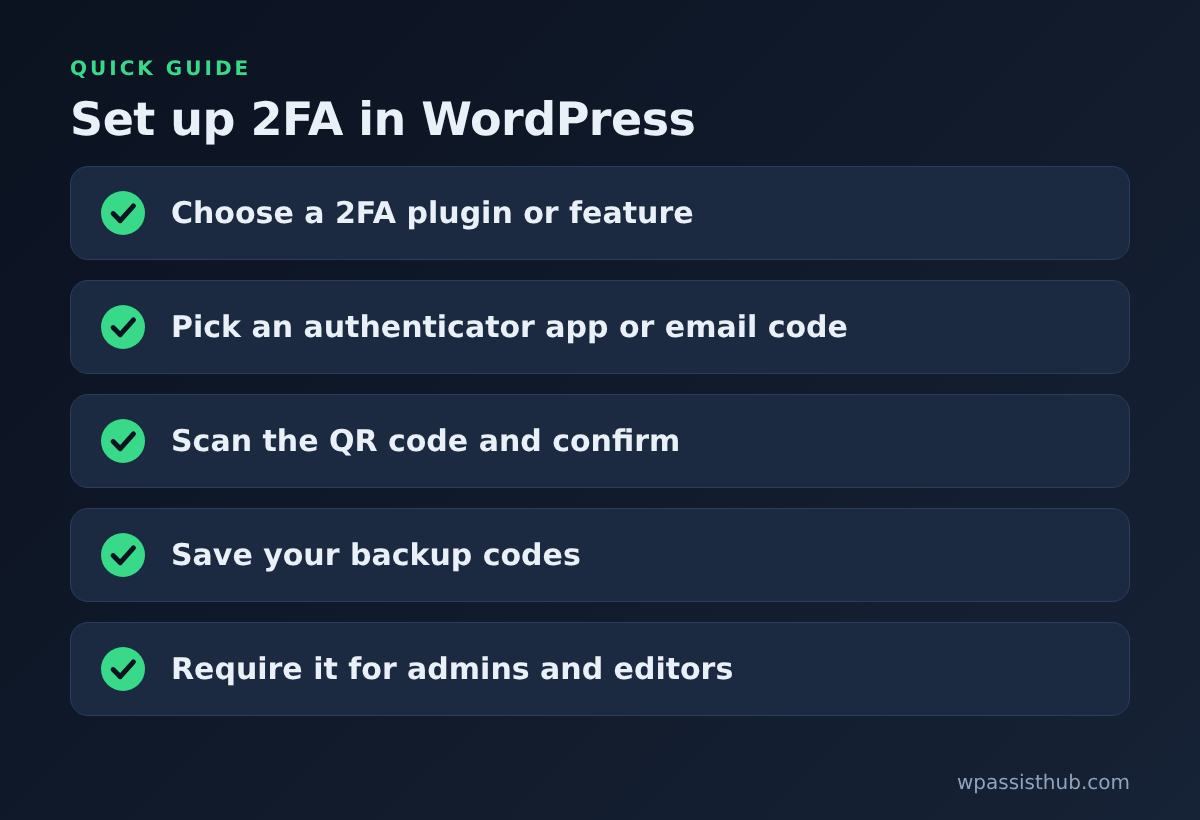
The Pro version of Admin Login URL Change includes 2FA, and many other security plugins offer it as well. The general process is the same for any of them:
- Install and activate the 2FA plugin or Pro feature.
- Go to its settings and choose your method: authenticator app, email code, or both.
- Open your profile page or the plugin’s setup screen.
- Scan the QR code with your authenticator app.
- Enter the six-digit code the app shows to confirm that it works.
- Download or write down the backup codes and keep them somewhere safe, not on the same phone.
- Log out and log back in to test the whole flow before you require it for others.
Rolling it out to a team
- Announce the change first and explain why.
- Give people a few days to set it up.
- Make 2FA required for administrators and editors.
- Keep at least one recovery path, such as a second admin who has backup codes.
How to avoid getting locked out
- Save your backup codes in a password manager.
- Do not remove 2FA from your only admin account until you have tested a login.
- Keep your phone’s clock accurate. Codes depend on the time, so a wrong clock can make valid codes fail.
- Know the recovery route: deactivate the 2FA plugin through FTP or your hosting file manager by renaming its folder under
wp-content/plugins/. Our post on getting back in after a login problem walks through this.
2FA is one layer, not the whole wall
Combine it with:
- A custom login URL
- Limited login attempts
- Regular updates and backups from our security checklist
Frequently asked questions
Does WordPress have built-in two-factor authentication?
No. WordPress core does not include 2FA, so you add it with a plugin.
What if I lose my phone?
Use your backup codes. If you do not have them, disable the 2FA plugin through FTP or your host’s file manager, then set it up again.
Is email 2FA safe enough?
It is better than no second step, but an authenticator app is stronger because it does not depend on your inbox being secure.
Summary
Two-factor authentication is among the strongest, cheapest upgrades you can make to a WordPress login. Pick an authenticator app, save your backup codes, require it for anyone with editing powers, and test before you roll it out.
Disclosure: I develop the Admin Login URL Change plugin mentioned in this guide.

We build lightweight WordPress plugins and write practical, tested guides for site owners and developers. Our team is led by a WordPress Core Contributor with 6+ years of WordPress experience.
About us →