In this article9 sections
If your login page is hit by hundreds of failed attempts a day, and most come from a handful of IP addresses or one region, blocking them can quiet things down fast. WordPress does not have this feature built in, so you need a plugin or a server rule.
This guide shows how to block countries in WordPress, when country and IP blocking is a good idea, and the mistakes that can cost you real visitors.
When blocking makes sense
- Your logs show repeated attacks from the same IPs.
- You run a local business and have no customers in certain countries.
- You want to keep an admin area or a private section limited to the places where you work.
- You see spam or fake sign-ups from specific regions.
When blocking is a bad idea
- You want search engine traffic. If you block entire countries on your public pages, you may block crawlers that visit from those regions and lose real readers. Be careful about blocking public content.
- Your audience travels or uses VPNs. VPN users appear to come from other countries, and attackers can also use VPNs, so country blocks are never complete.
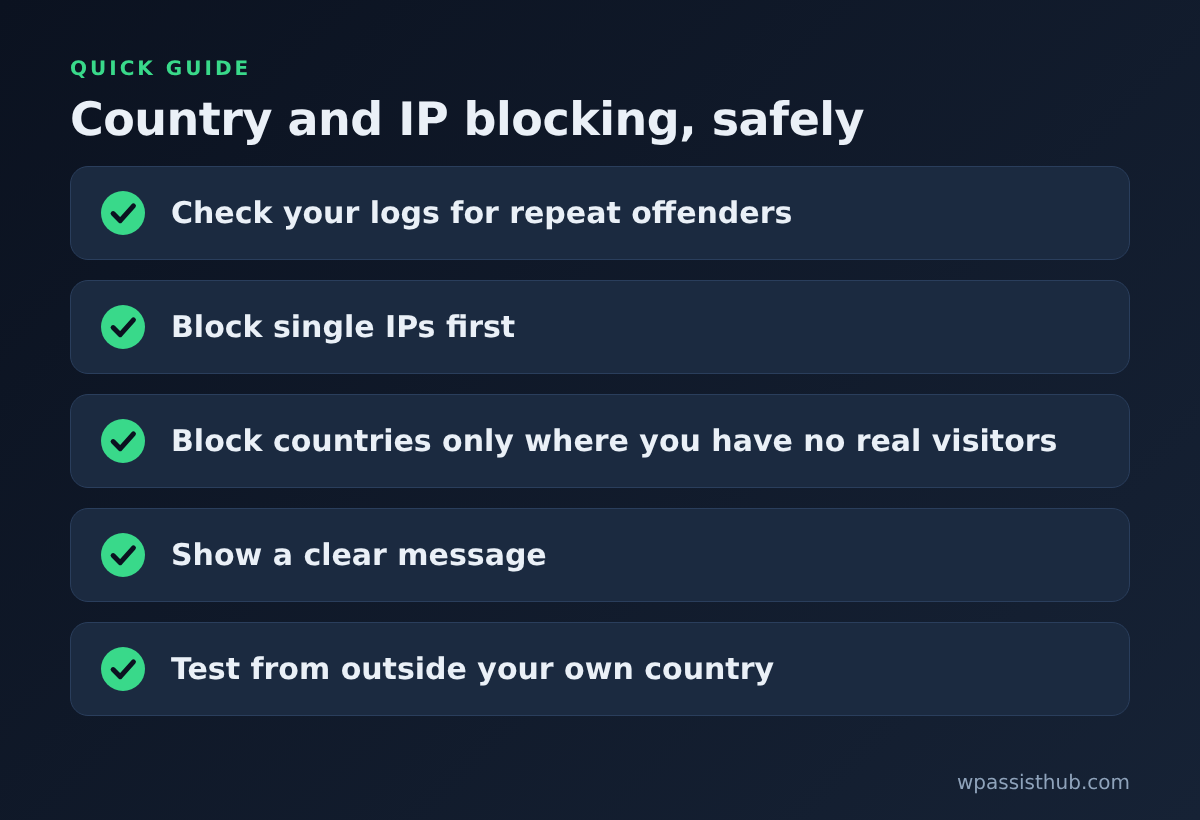
- You do not have evidence yet. Blocking without checking your logs can lock out customers for no reason.
A safer approach: block for the login page first
The lowest-risk use is protecting your login and admin area rather than your whole site. Real visitors never need wp-admin, so blocking foreign traffic there costs you nothing.
How to block by IP address or country in WordPress
The free plugin Disabled Source, Disabled Right Click and Content Protection lists Disable by IP Address and Disable by Country in its features, each with a notification message and a page design you can customise.
- Install and activate the plugin.
- Open Disabled Settings from the admin menu.
- Find the Disable by IP Address option. Add the addresses you want to block.
- Find Disable by Country, choose the countries to block, and edit the notification shown to blocked visitors.
- Save, then test.
The Pro version of Admin login URL Change also includes an IP Blocker and Country Block aimed specifically at the login page.
How to find IPs worth blocking
- Check your host’s access logs, or a login log in a security plugin.
- Look for the same IP making many
POST /wp-login.phprequests. - Block individual addresses first, then ranges if one network is the problem.
- Never block your own IP or your office’s address.
Mistakes to avoid
- Blocking your own country by accident. Double-check the country list before saving.
- Forgetting your team and clients. Ask where your staff and customers log in from.
- Showing a harsh message. Use a neutral note, such as “Access from your location is restricted. Contact us if you think this is a mistake,” and include a contact route.
- Relying on it alone. Combine it with login attempt limits and two-factor authentication.
How to test your block
- Use a reputable VPN set to a blocked country, if your rules allow it.
- Visit your login page and confirm you see the block message.
- Disconnect the VPN and confirm you can log in again.
- Check that your main site still loads for normal visitors.
Frequently asked questions
Does country blocking stop all attacks?
No. Attackers can use VPNs or servers in countries you allow, so treat country blocking as one layer.
Will blocking a country affect my SEO?
It can, if you block public pages and search engine crawlers visit from that region. Limiting blocks to the login and admin area is safer.
How accurate is country detection?
It relies on IP geolocation data. That is usually accurate at the country level, but not perfect, so test your rules before you rely on them.
Summary
Blocking countries and IP addresses can reduce attack traffic, but it works best on the login page, driven by evidence from your logs. Pair it with the other defences in our guide to stopping WordPress brute force attacks.
Disclosure: I develop both plugins mentioned in this guide.

We build lightweight WordPress plugins and write practical, tested guides for site owners and developers. Our team is led by a WordPress Core Contributor with 6+ years of WordPress experience.
About us →