In this article8 sections
Changing your login address is a good security step, but it has one risk: forgetting the new address or hitting a conflict that leaves you locked out of WordPress. Do not panic. Getting back in is usually quick, and it does not mean your site is broken.
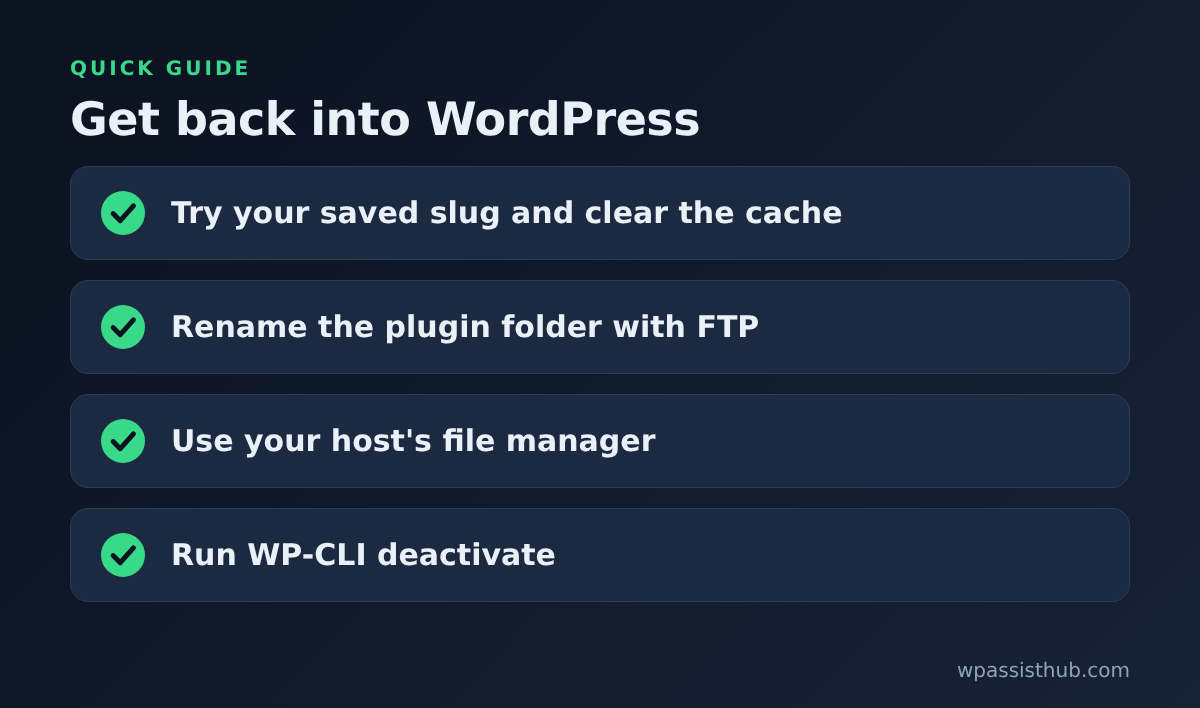
This guide covers the most common ways to recover, from the easiest to the most technical.
Step 1: Check the simple things first
- Look for your saved slug. Check your password manager, your notes, and the email you may have sent yourself. A slug like
myloginmeans your login isyoursite.com/mylogin. - Check for typos and trailing characters. Slugs often include underscores or numbers.
- Clear your cache. If you use a caching plugin or CDN, clear it, or try the address in a private window.
- Try
wp-adminandwp-login.php. With a custom login plugin on, these often show a “not found” page. That is normal and means the plugin is working. - Look at the plugin’s settings from another admin session. If you are still logged in anywhere, open the plugin’s page and read the slug there.
Step 2: Disable the plugin using FTP or your host’s file manager
If you cannot find the slug, you can turn the plugin off by renaming its folder. WordPress then deactivates it, and the normal wp-login.php address works again.
- Connect to your site with an FTP client, or open File Manager in your hosting control panel.
- Go to
wp-content/plugins/. - Find the plugin folder. For example:
admin-login-url-changeFor Admin login URL Changedisabled-source-disabled-right-click-and-content-protectionfor Disabled Source, Disabled Right Click and Content Protection- Rename the folder by adding
-offat the end. - Visit
yoursite.com/wp-login.phpand log in. - Rename the folder back, activate the plugin again, and set a slug you will remember.
Do not delete the folder unless you want to remove the plugin and its settings.
Step 3: Use WP-CLI
If you have SSH access and WP-CLI installed, one command does it:
wp plugin deactivate admin-login-url-change
Replace the name with the plugin slug you want to disable. Run wp plugin list to see the exact names.
Step 4: Check for conflicts
If you can log in at the new address but it fails, or you see redirect loops, the cause is often a conflict:
- Another login or security plugin rewriting the login path. Use only one.
- Caching or CDN rules that serve an old copy of the login page.
- A firewall or server rule that blocks unknown paths.
- Custom redirects in your theme or
.htaccess.
Disable other security plugins one at a time to find the culprit.
If you are locked out for another reason
The same recovery steps work if you are blocked by:
- A login limit lockout. Wait for the lockout to expire, or disable the plugin using the method above. Our guide to limiting login attempts explains safe settings.
- A country or IP block. Disable the blocking plugin, then review your rules. See blocking countries safely.
- Two-factor authentication problems. Use your backup codes first. If you do not have them, disable the 2FA plugin with FTP. See our 2FA guide.
How to avoid getting locked out again
- Save your slug in a password manager as soon as you choose it.
- Choose a slug you can remember, such as two unrelated words.
- Keep a second administrator account with its own access.
- Test the new login URL in a private window before logging out.
- Keep your hosting login and FTP details handy.
- Take a backup before you change security settings.
Our walkthrough on changing the WordPress login URL includes these checks.
Frequently asked questions
Will renaming the plugin folder delete my settings?
No. WordPress simply deactivates the plugin. Its settings usually stay in the database, so when you rename the folder back and activate it again, they should still be there.
Can I get back in without FTP?
Yes. The file manager in your hosting control panel does the same job, and your host’s support team can also rename the folder for you.
Why does wp-login.php show a ‘not found’ page now?
Because the plugin hides the default address on purpose. That is a sign the custom login URL is working, not a sign something is broken.
Summary
A lockout is almost always recoverable. First, look for your saved slug, then rename the plugin folder with FTP, or use WP-CLI. Once you are in, set a slug you will remember and note it somewhere safe.
Disclosure: I develop the plugins mentioned in this guide.

We build lightweight WordPress plugins and write practical, tested guides for site owners and developers. Our team is led by a WordPress Core Contributor with 6+ years of WordPress experience.
About us →