In this article7 sections
Every standard WordPress site has the same login address: yoursite.com/wp-login.php, or yoursite.com/wp-admin. Bots know that, so they visit those addresses all day and try thousands of username and password combinations.
Changing your login URL does not make a weak password safe. What it does is take your login page off the address bots check first, which reduces junk traffic and failed login attempts.
Why change the default login URL?
- Less bot noise. Automated scripts mostly target the default path. A custom path means fewer hits.
- Lower server load. Every failed login attempt still costs your server some processing.
- A cleaner log. With fewer random attempts, the ones you do see are easier to investigate.
- A small extra layer. It works together with strong passwords, two-factor authentication, and login limits. It does not replace them.
To be honest about the limits: this is security through obscurity. Someone who knows or finds your new address can still try to log in. That is why we recommend the steps in our WordPress security checklist as well.
How to change the login URL with a plugin
The free plugin Admin Login URL Change is built for this one job. It does not modify WordPress core files, does not create new files, and does not edit your .htaccess, so it is a clean option. It also works with WooCommerce logins.
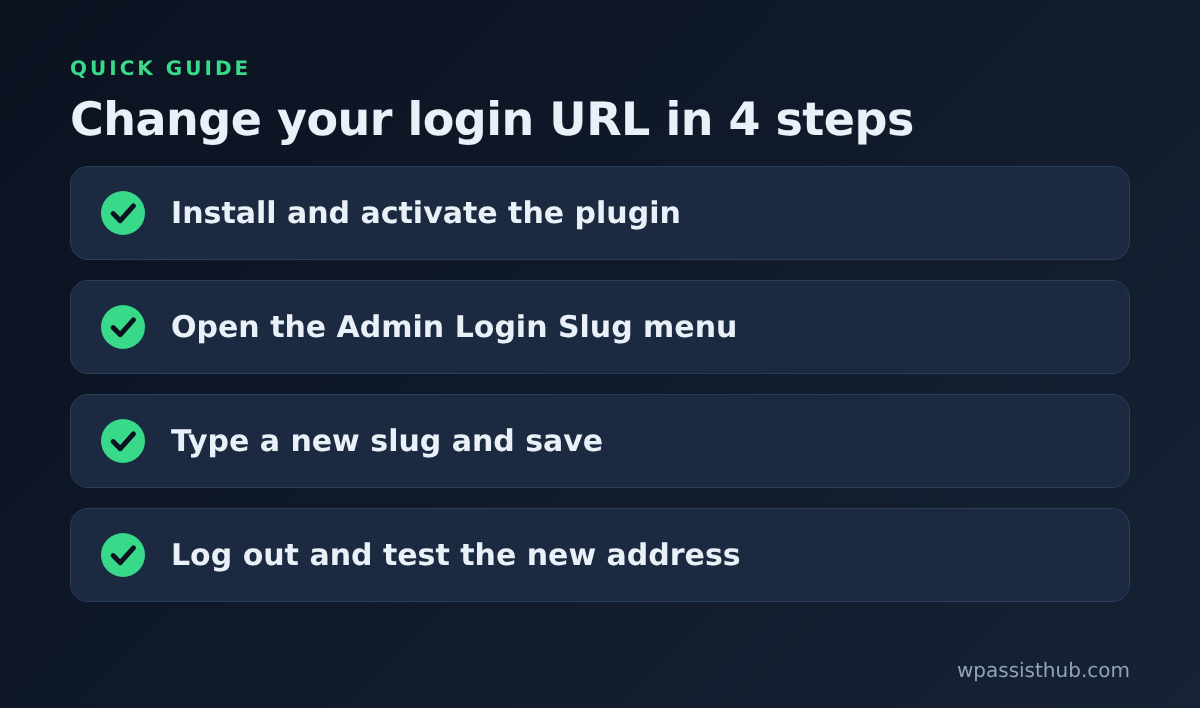
- Go to Plugins → Add New, upload or search for the plugin, and click Install Now.
- Click Activate.
- Open the plugin’s settings page. Under Custom Login URL, you will see a Login Slug field.
- Type your new slug. Use only letters, numbers, and underscores. Examples:
mylogin,adminpanel,securelogin. - Click Save Changes.
- Log out, then visit
yoursite.com/your-new-slugto confirm that you can log in.
The settings page also shows a Security Score based on the features you have active, plus Settings, Other Settings, and Login Log tabs.
Choosing a good slug
Pick something you can remember, but a bot would not guess.
- Avoid obvious words like
login,admin,dashboardorsecure. - Avoid your site name or your username.
- Use two unrelated words, or add numbers, such as
blue_lamp_47. - Store the slug in your password manager so you never lose it.
Things to check after you change it
- Bookmarks and shortcuts. Update the saved login link for yourself and anyone on your team.
- Caching. If you use page caching or a CDN, clear the cache after saving.
- Other login plugins. Two plugins that both rewrite the login path can conflict. Use one at a time.
- Membership or WooCommerce login forms. Test them after the change.
- Email templates. Some plugins hard-code the old login URL. Send a test email to check.
If anything goes wrong, our guide on what to do if you get locked out after changing the login URL explains how to get back in.
Add more layers
The plugin has a Pro version that adds an IP Blocker, Country Block, Login Limit, Login Alerts, Temp Login, and 2FA. Even without Pro, you can combine the custom URL with:
- Limiting login attempts
- Two-factor authentication
- Blocking countries you never get real visitors from
Frequently asked questions
Is changing the login URL enough to secure WordPress?
No. It reduces automated attempts, but you still need strong passwords, two-factor authentication, and regular updates.
Can I still use /wp-admin after changing the login URL?
Visitors who are not logged in usually get a not found page there, but the exact behaviour depends on the plugin. Test it in a private window after you save.
What if I forget my new login URL?
Check your password manager first. If it is not there, rename the plugin folder over FTP to turn the plugin off. See how to get back in.
Summary
Changing the WordPress login URL takes about two minutes, reduces bot traffic to the login page, and works well alongside stronger measures. Choose an unguessable slug, save it somewhere safe, and test before you close your admin session.
Disclosure: I develop the Admin Login URL Change plugin mentioned in this guide.

We build lightweight WordPress plugins and write practical, tested guides for site owners and developers. Our team is led by a WordPress Core Contributor with 6+ years of WordPress experience.
About us →