In this article9 sections
If you publish original photos, tutorials, or product descriptions, you have probably seen them show up on someone else’s site. Turning off the right-click menu is one of the quickest ways to make casual copying harder. It takes a few minutes, and you do not need to be a developer.
This guide shows three ways to disable right-click on a WordPress website, explains what it will and will not protect, and covers the effect on SEO and visitors.
What disabling right-click actually does
When a visitor right-clicks a page, the browser opens a context menu with options such as Save image as, Copy, View page source, and Inspect. A right-click blocker uses JavaScript to cancel that menu, so it never appears.
That stops the most common kind of copying: someone casually saving an image or copying a paragraph. It is a deterrent, not a lock. A determined person can still take a screenshot, use the browser’s main menu, or turn off JavaScript. Think of it as a “please don’t” sign that works on most visitors, not a safe.
Method 1: Use a plugin (easiest)
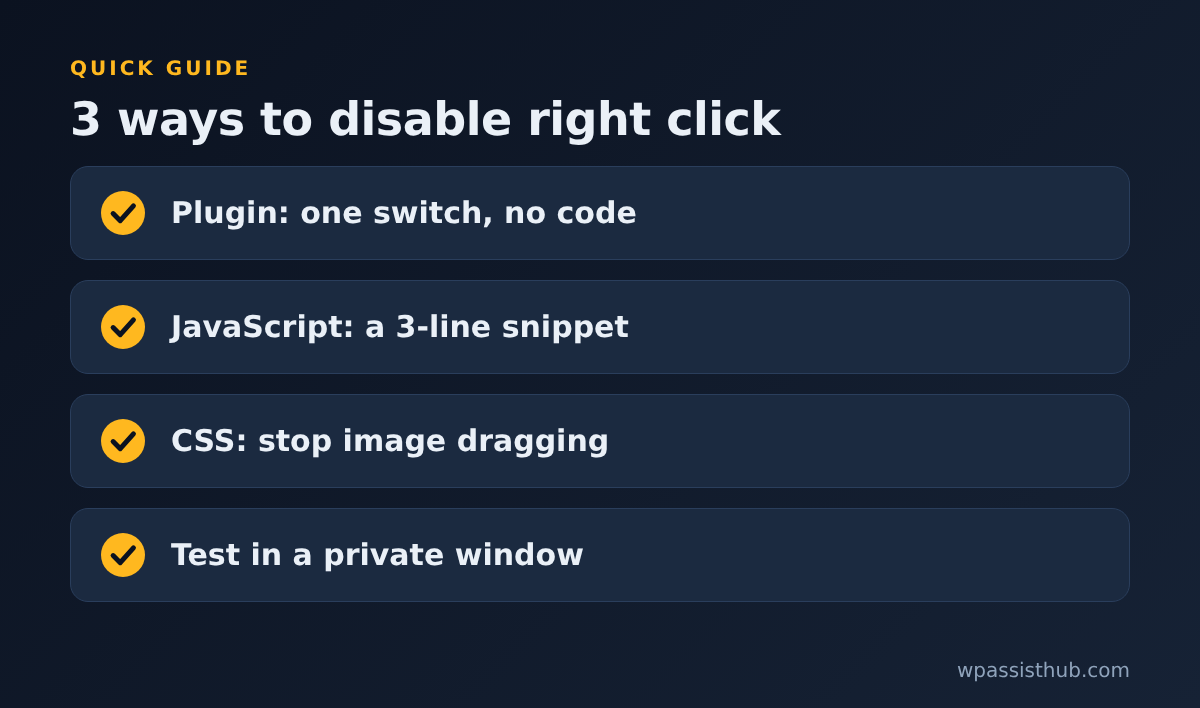
A plugin is the best choice if you do not want to touch code. The free plugin Disabled Source, Disabled Right Click and Content Protection has a Right Click Off option, and it also covers image dragging, developer tools shortcuts, and comments.
- In your WordPress dashboard, go to Plugins → Add New and search for the plugin name, or upload the plugin folder to
/wp-content/plugins/. - Click Activate.
- Open the Disabled Settings menu in the admin sidebar.
- Turn on Right-Click Off.
- Optionally, edit the Notification text that visitors see when they try to right-click.
- Save, then open your site in a private (Incognito) window and test it.
You can also limit protection by user role, post type, or specific page ID, which is useful if you only want to protect certain pages.
Method 2: Add a small JavaScript snippet
If you prefer code, you can block the context menu yourself. Add this to your child theme’s functions.php file, or use a code snippets plugin:
add_action( 'wp_footer', function () {
    if ( current_user_can( 'manage_options' ) ) {
        return; // Let administrators right-click.
    }
    ?>
    <script>
    document.addEventListener( 'contextmenu', function ( e ) {
        e.preventDefault();
    } );
    </script>
    <?php
} );
The manage_options check lets admins keep the normal menu, which saves you from locking yourself out of “Inspect” while you work. Always use a child theme; otherwise, a theme update will remove your change.
Method 3: Use CSS to make images harder to grab
CSS cannot block the right-click menu, but it can stop images from being dragged to the desktop:
img {
    -webkit-user-drag: none;
    user-select: none;
}
Avoid pointer-events: none on images. It blocks dragging, but it also breaks image links, lightboxes and sliders. If you use the plugin above, the Disable Image Drag/Drop option handles this without those side effects.
Does disabling right-click hurt SEO?
No. Google reads your page the way a crawler does, with no mouse or context menu involved. A JavaScript right-click blocker does not change your content, links, or markup, so your rankings are unaffected. The plugin’s own FAQ makes the same point about Google rankings.
Downsides you should know about
- Accessibility: some people use the context menu for spelling checks, translation, or assistive tools. Consider leaving it on for pages that do not need protection.
- Annoyance: visitors who try to open a link in a new tab with right-click may feel blocked. A friendly notification message helps.
- False security: anything shown on a screen can be captured. Do not rely on this alone for valuable files.
Combine it with other protection
Right-click blocking works best as one layer. Pair it with image watermarks, a clear copyright notice, and hotlink protection. Our guide on how to protect WordPress content from being copied covers the full list, and how to protect images on WordPress goes deeper on photos.
Frequently asked questions
Can people still copy my images if I disable right-click?
Yes. Screenshots, the browser’s main menu, and developer tools can still capture them. Right-click blocking stops casual copying, so combine it with watermarks and the other steps in this guide.
Will disabling right-click stop Google from indexing my pages?
No. Search engines crawl pages without a mouse, so a right-click blocker does not change what Google sees.
Can I disable right-click on only some pages?
Yes. The plugin can apply protection by user role, post type, or page ID, and a code snippet can check conditions such as is_single() or is_page() before it runs.
Quick checklist
- Pick a method (plugin is easiest).
- Exempt administrators, or test in a private window.
- Write a short, polite notification message.
- Test on desktop and on your phone.
- Add other layers of protection for important content.
Disclosure: I develop the Disabled Source plugin mentioned in this guide.

We build lightweight WordPress plugins and write practical, tested guides for site owners and developers. Our team is led by a WordPress Core Contributor with 6+ years of WordPress experience.
About us →