In this article8 sections
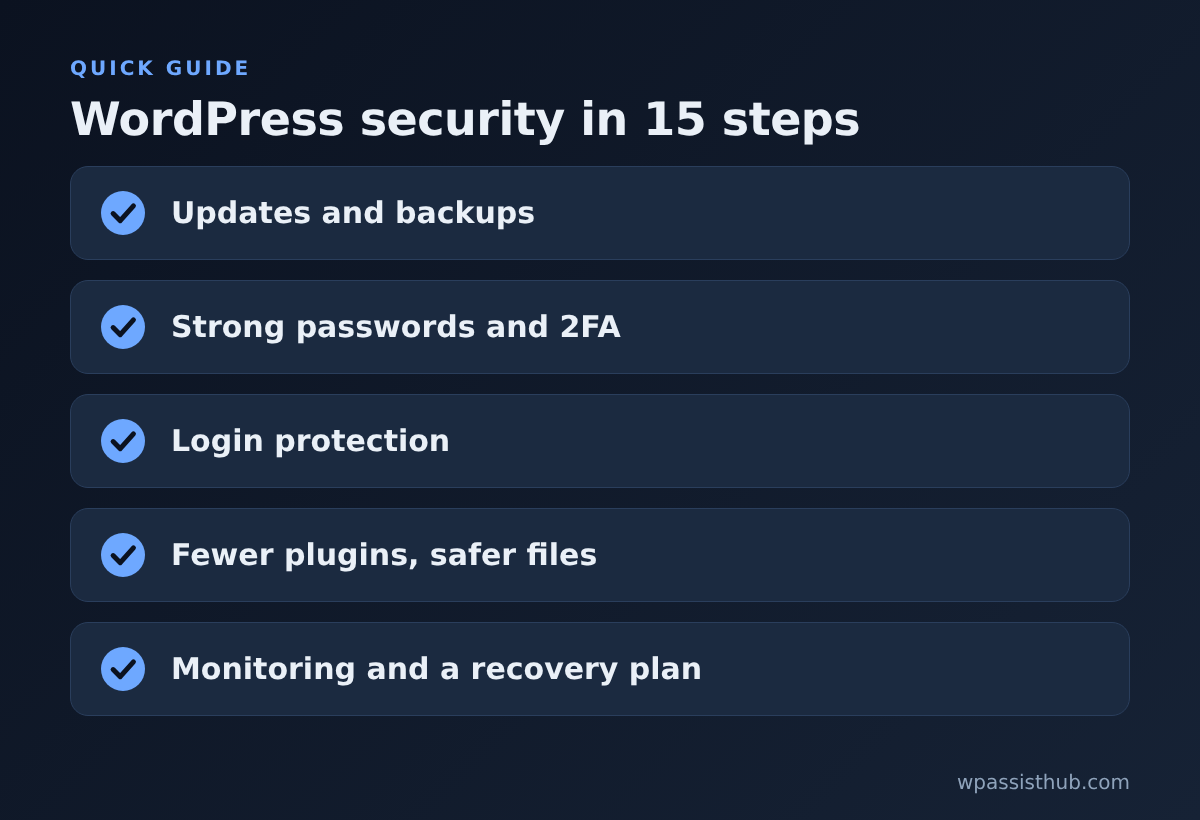
Most hacked WordPress sites fall into a short list of causes: outdated software, weak passwords, vulnerable plugins, and no backups. This checklist covers those, then adds extra layers. You do not have to do all 15 in one afternoon. Start from the top and tick them off.
Basics
1. Keep WordPress, plugins, and themes updated
Most successful attacks use known vulnerabilities that already have a fix. Turn on automatic updates for minor WordPress releases and security fixes, and review plugin updates weekly.
2. Back up your site, and test the backup
Keep daily or weekly backups of your files and database, stored away from your server. A backup you have never restored is a guess. Try a restore on a staging site at least once.
3. Use HTTPS everywhere
Install an SSL certificate (most hosts offer free ones) and redirect all traffic to HTTPS. This protects logins and form data in transit.
4. Choose good hosting
Cheap, overloaded hosting is hard to secure. Look for a host with isolated accounts, regular server updates, and a firewall.
Logins
5. Use strong, unique passwords
Use a password manager and generate long random passwords. Never reuse a password from another service.
6. Turn on two-factor authentication
Require a code from an authenticator app for administrators and editors. See our guide to setting up 2FA in WordPress.
7. Limit login attempts
Block an IP after a few failed attempts. Read how to limit login attempts in WordPress.
8. Change the default login URL
Moving the login page removes most automated attacks. See how to change the WordPress login URL, and consider blocking countries you never serve from the login page.
9. Give people the least access they need
Do not make everyone an administrator. Use Editor, Author, or Contributor where possible, and delete accounts that are no longer in use.
Site and files
10. Remove unused plugins and themes
Deactivated plugins can still be exploited. Delete anything you do not use, and avoid plugins that have not been updated in more than a year.
11. Disable the file editor
WordPress lets administrators edit theme and plugin files from the dashboard. If an attacker gets in, that is an easy way to add malicious code. Turn it off by adding this line to wp-config.php:
define( 'DISALLOW_FILE_EDIT', true );
12. Set safe file permissions
A common setup is 755 for folders and 644 for files, with wp-config.php at 440 or 400 if your host allows it. Never use 777.
13. Restrict things you do not use
Turn off XML-RPC if no tool needs it, and consider restricting the REST API for logged-out visitors. Read the cautions in our REST API guide before you do.
Watching and recovering
14. Monitor your site
Use a security plugin or activity log to track logins, file changes, and new users. Set up uptime monitoring, so you hear about problems before your visitors do. If your logs show repeated attacks, see what brute force attacks look like.
15. Write down a recovery plan
Decide in advance who to call, where your backups are, and how to put the site into maintenance mode while you clean up. Keep the plan somewhere you can reach if the site is down.
Protecting your content as well
Security is not only about keeping attackers out. If copying is a worry, add the deterrents in our guide to protecting WordPress content from being copied.
How often to review this list
- Weekly: updates, backup status, new user accounts.
- Monthly: unused plugins, permission checks, a restore test if you can.
- Yearly: review hosting, passwords, and access.
Frequently asked questions
What is the single most important WordPress security step?
Keeping everything updated, together with strong, unique passwords and two-factor authentication. Add tested backups so you can recover if something goes wrong.
Do I need a security plugin?
A security plugin helps with scanning, logs, and login protection, but it does not replace updates, backups, and good passwords.
How often should I go through this checklist?
Check updates, backups, and new users weekly, review plugins and permissions monthly, and review hosting and access once a year.
Summary
You will never make a site 100% hack-proof, but this list closes the doors attackers use most. Start with updates, backups, strong passwords, and 2FA, then work down to the finer points.

We build lightweight WordPress plugins and write practical, tested guides for site owners and developers. Our team is led by a WordPress Core Contributor with 6+ years of WordPress experience.
About us →